Guides / Updated 2026-09-30
How to Import Minecraft Bedrock Maps and MCWORLD Files
Import Minecraft Bedrock maps on Windows, Android, iPhone or iPad. Open MCWORLD files with Minecraft and troubleshoot common import issues.
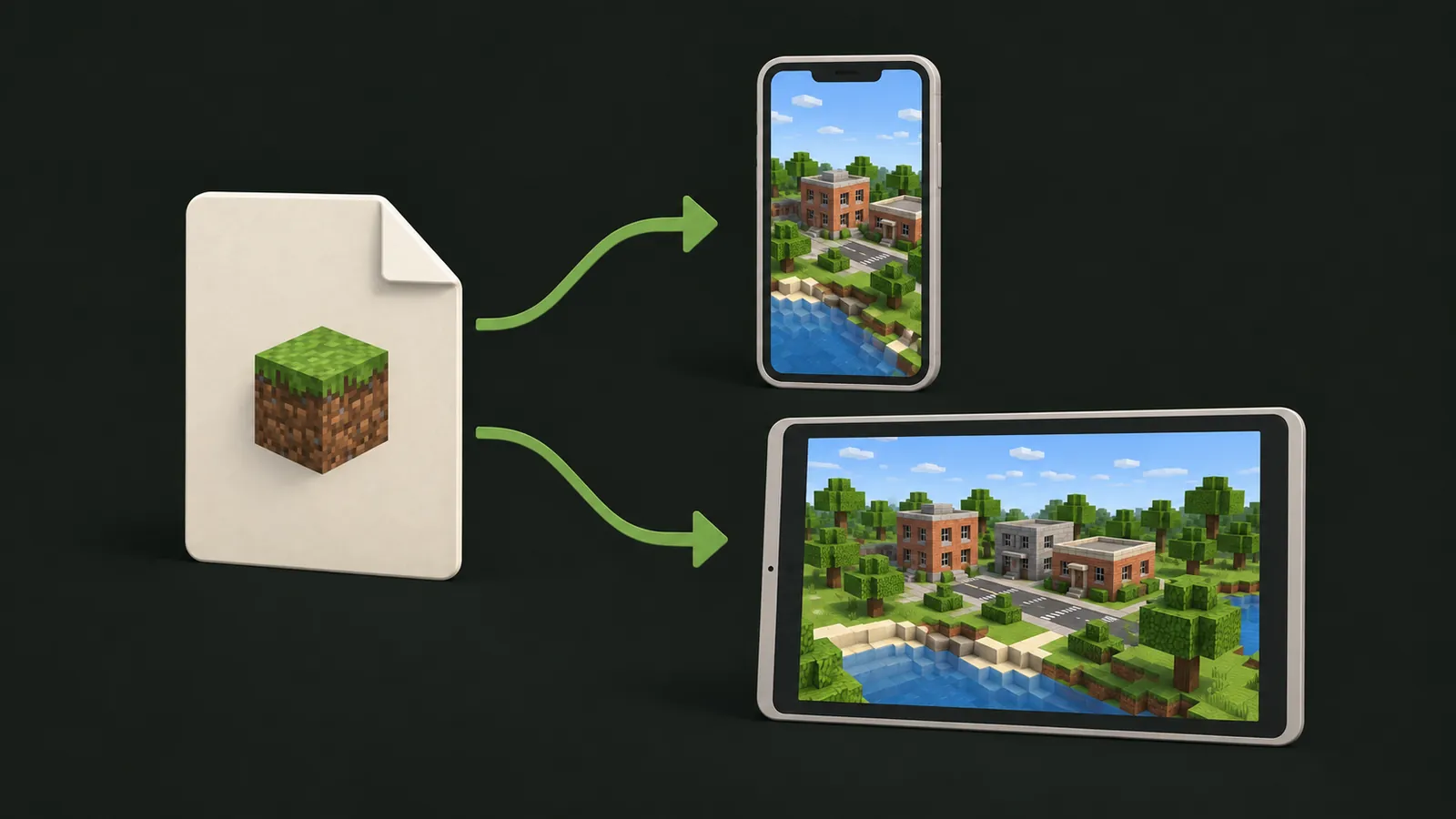
Open a valid .mcworld with Minecraft: Bedrock Edition.
Keep a copy of your original download. Choose your device
section below for the import steps.
Start with the correct file
A Bedrock world is commonly distributed as a .mcworld package. Keep a copy of the original download. Confirm that the file finished downloading and that it is a world rather than an add-on or template.
A Java ZIP is not a Bedrock world. Renaming it to .mcworld will not convert its data. Generate the correct edition in the Bedrock map generator, or use the Java import guide for a Java save.
Windows: import a MCWORLD file
Double-click the .mcworld file to open it with Minecraft Bedrock, then check the game's import result.
- Install and open the intended Bedrock game, then close any world currently being edited.
- Find the complete
.mcworlddownload in File Explorer. - Open the file with Minecraft. If another program handles the extension, use the system's Open with control and choose Minecraft when offered.
- Wait for the game's import result before opening the world list.
- Find the imported world, open a copy, and check the expected area.
If the operating system does not offer Minecraft, confirm which edition is installed. Do not move unfamiliar files into application-managed folders as a substitute for a missing import option.
Android: open with Minecraft
Open the .mcworld file with Minecraft from your Files app. Keep the original download while Minecraft imports the world.
If Minecraft is not offered as a file handler, check that Bedrock Edition is installed and use your file manager's Open with action when available.
iPhone and iPad: open from Files
Open the .mcworld file with Minecraft from your Files app on iPhone or iPad.
Keep the original download while Minecraft imports the world, then check the game's import result before opening the world.
If the import fails
| Problem | Next check |
|---|---|
| File opens in an archive app | Check the file association and installed Minecraft edition. |
| Import fails immediately | Confirm the download is complete and actually uses Bedrock world data. |
| World does not appear | Read the import result; check the world display name and the game instance. |
| Java ZIP renamed to MCWORLD | Return to the original file. Request Bedrock output rather than renaming. |
| Console device | Import on a phone or PC first, then sync through Realms or a Microsoft account where supported. |
Official references and next steps
Microsoft documents MCWORLD handling in the Bedrock Editor workflow. Editor projects and ordinary playable worlds are different contexts, so use the instructions that match your file and game.
For moving worlds between devices, follow Minecraft's Realms transfer guidance for your device.
Return to the Bedrock real-world map generator to inspect available options.