Guides / Updated 2026-09-30
Arnis Minecraft: Generate Real Places Online
Understand the Arnis project and this independent online service. Compare workflows, search an address, and choose the right next step for your world.
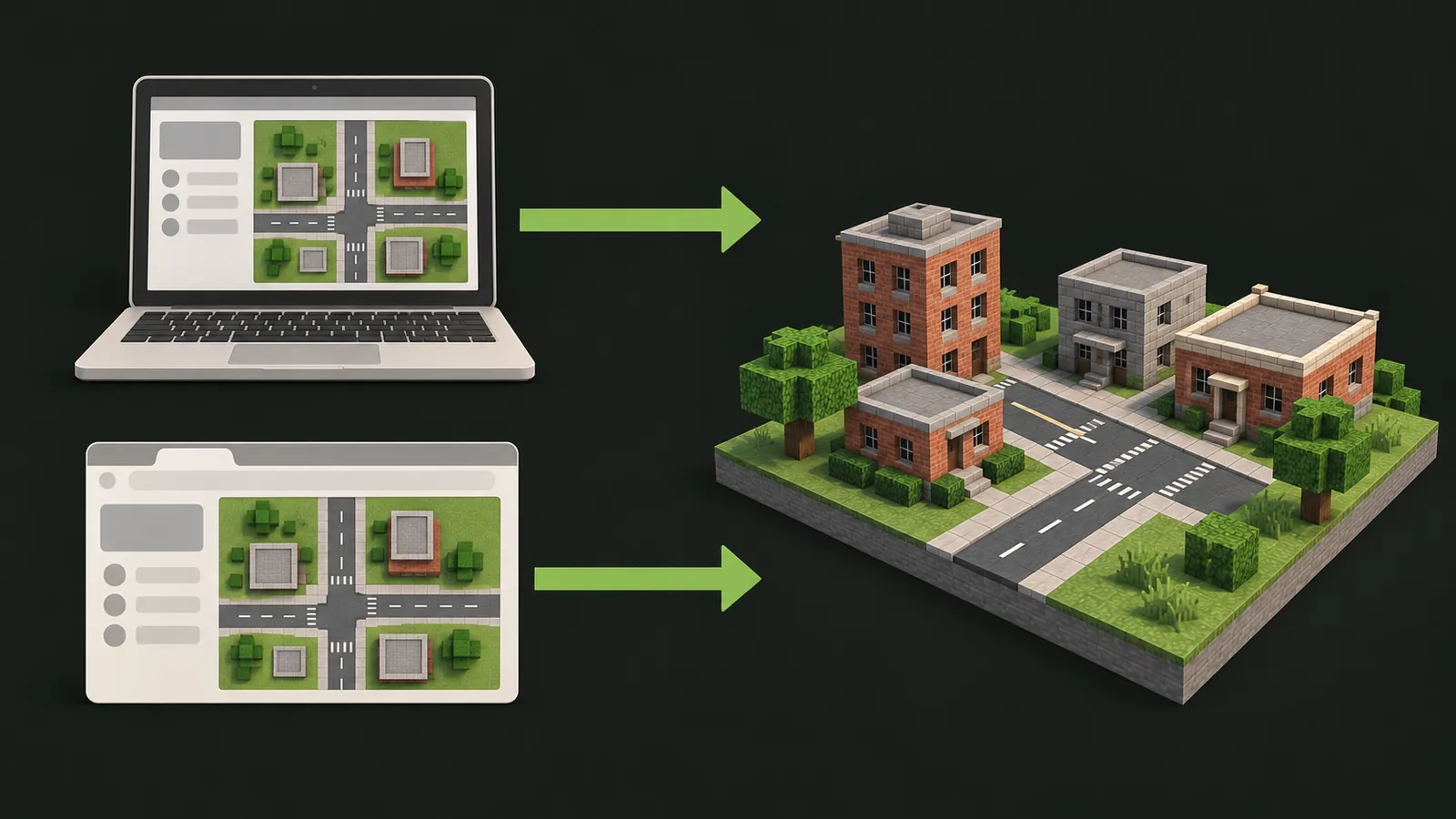
Independent service, shared open-source foundations. ArnisWeb uses an Arnis-based generator. Upstream project links are provided below so you can choose between upstream tools and this browser workflow.
What is Arnis?
Arnis is an open-source project for turning real geographic data into Minecraft worlds. Its official sources are arnismc.com and the louis-e/arnis repository. Consult those sources for upstream releases and documentation.
ArnisWeb provides an independent browser workflow built on the open-source Arnis project. ArnisWeb is not affiliated with or endorsed by the Arnis project maintainers. Upstream features and limits should not be assumed to apply unchanged to this service.
Choose a workflow
| Question | Arnis desktop project | ArnisWeb browser service |
|---|---|---|
| Where do I begin? | Download the release from the official project. | Open the map in your browser. |
| Where does generation run? | On your own computer. | On the connected generation service. |
| What limits apply? | Check the installed release and local hardware. | Use the edition, mode and area limit shown in the tool. |
| How do I get a world? | Follow the desktop application’s output settings. | Download the completed output from the web workflow. |
| Where do I check support? | Official documentation and issue tracker. | This site’s guides and support entry. |
Find a real place by name or address
Open the online generator and enter a place name or address. Review the returned locations rather than assuming the first is correct. Add a city or country if the name is ambiguous.
The selected search result centers the map. Zoom in, check nearby roads and mapped buildings, then draw a rectangle within the current area limit.
Use this browser workflow to find a place by name or address without setting up the desktop generator.
Generate, download and import
Select an available edition and mode after choosing your area. Generation time depends on selection size, map detail and service load. Keep the page open until your world is ready to download.
Java worlds download as ZIP world folders. Read how to import a Minecraft Java world to find the correct saves directory. Bedrock (.mcworld) output is available when shown as selectable in the generator; the Bedrock page explains the import steps.
Keep a backup of your downloaded world and check the target game version before opening it.
What determines the result?
The input is geographic information rather than an AI image prompt. Map coverage and available attributes influence which roads, building shapes and other features can be represented. Terrain is a separate concern from building footprints.
Read the map-data explanation to learn how mapped roads, building footprints and elevation shape your world.
Official sources and online options
Use the Arnis project website for project downloads and links to the project's own online offering, MapSmith. ArnisWeb and MapSmith are separate services; do not transfer pricing, area limits or compatibility claims from one to the other.
For implementation and release details, see the official repository. To continue here, choose a real-world location.