Guides / Updated 2026-09-30
Google Maps to Minecraft: Can You Recreate a Location?
Find the same location in Minecraft without importing Google imagery. Learn the supported map-selection workflow and how OSM data affects the result.
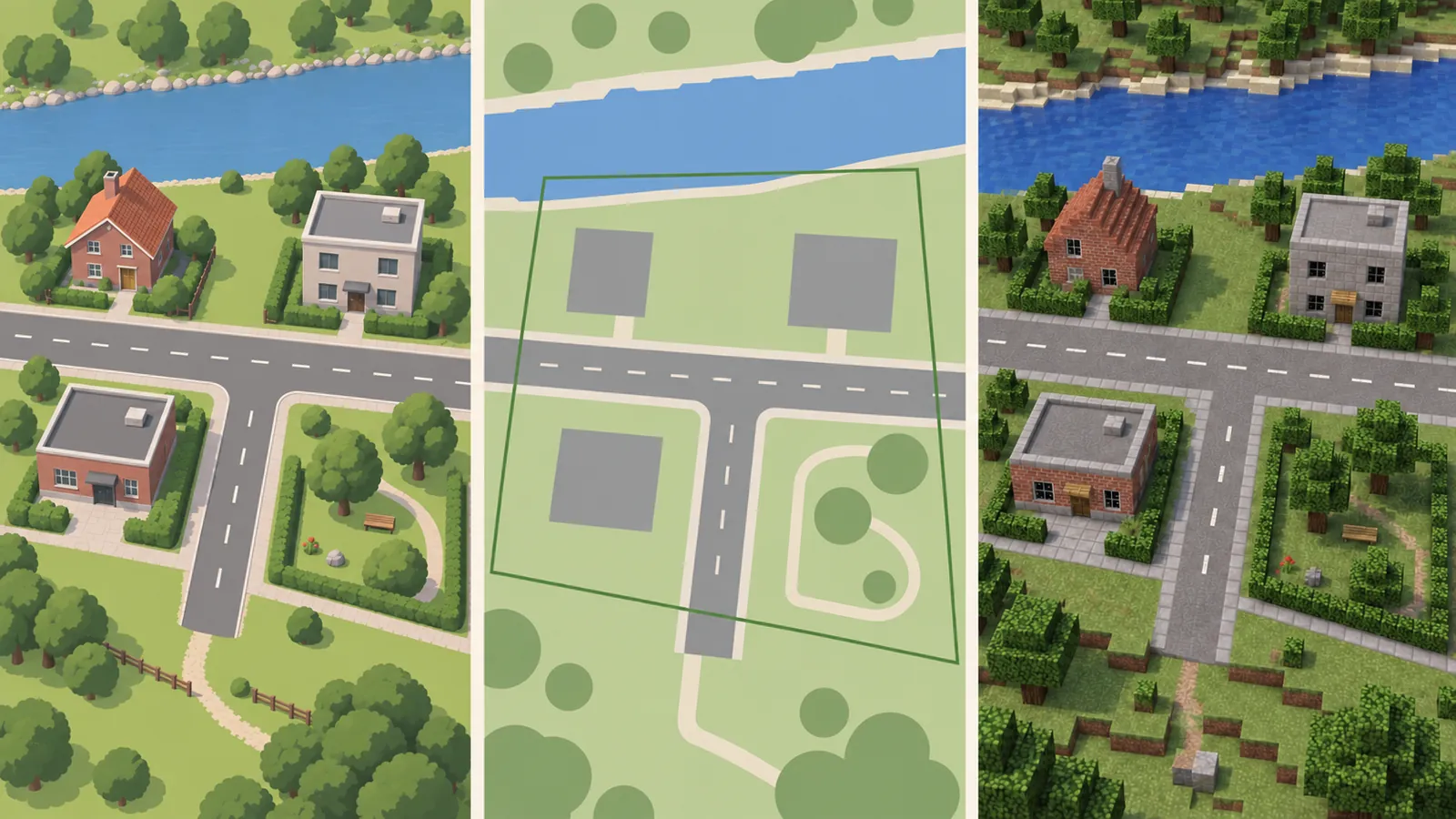
You can search for the same place, but this is not a Google Maps converter.
This site uses OpenStreetMap and available terrain data. It does not import Google Maps imagery, Street View, share links or Google Earth models.
What does “Google Maps to Minecraft” mean?
People use this phrase for different tasks. Finding a place on Google Maps and recreating its general geography is different from importing Google imagery or a 3D model. This site's input is a geographic selection made in its own map.
The generator does not accept a Google Maps share link as an import file. Search for the place name or street address instead, confirm the map position, and choose the area yourself.
Which requests are supported?
| What you want to do | This site’s workflow |
|---|---|
| Recreate a location found on Google Maps | Search the same place in the online generator, then select an area. |
| Paste a Google Maps URL | Not a supported import method. Use a place name or address. |
| Upload a screenshot or satellite image | Image-to-world conversion is not available. |
| Import Street View or Google Earth buildings | No imagery, Street View or Google 3D-model import is provided. |
| Upload a custom map file | This workflow uses the live geographic selection, not a file upload. |
Recreate the same real-world location
- Note the place name and enough address detail to distinguish it from similarly named locations. You do not need to export anything from Google Maps.
- Open the real-world Minecraft map generator. Search for that name or address and choose the matching result.
- Check nearby streets, river bends or landmarks on the map. Search results can be approximate; selecting the first result without checking may put you in the wrong neighborhood.
- Draw a compact rectangle around the area you want. Keep within the limit displayed by the generator. A small selection is easier to inspect than an entire city.
- Choose an available edition and mode. Start generation, keep the page open, and download the result when available.
- Follow the Java import guide or the Bedrock guide for the correct file type.
Searching changes the map position. It does not grant access to Google data or automatically choose a generation boundary.
Why the world may look different
The map used to find a location and the data used to generate its world can have different coverage. This service uses OpenStreetMap features and the connected generator's available terrain data. A building visible in another map service may have no usable footprint here.
A footprint describes an outline, not a photograph of the facade. Missing height or other attributes can change the resulting shape. Trees, roof details and interiors should not be assumed to match a reference photo.
See OpenStreetMap to Minecraft for the distinction between mapped objects and elevation. For urban areas, the city generator guide explains what a small neighborhood selection can represent.
Google Earth and Street View questions
Can I turn a Google Earth 3D building into Minecraft? Not with this tool. It does not offer Google Earth model extraction or model-file import.
Can I upload a satellite image? No. The generation workflow uses geographic data for a selected area, not pixels from an uploaded picture.
How can I check my generated world? Download the completed Java world ZIP, extract it, and follow the Java import guide to open it in Minecraft.
Where can I learn about the source map? Read OpenStreetMap's data and attribution information.